Map Builder
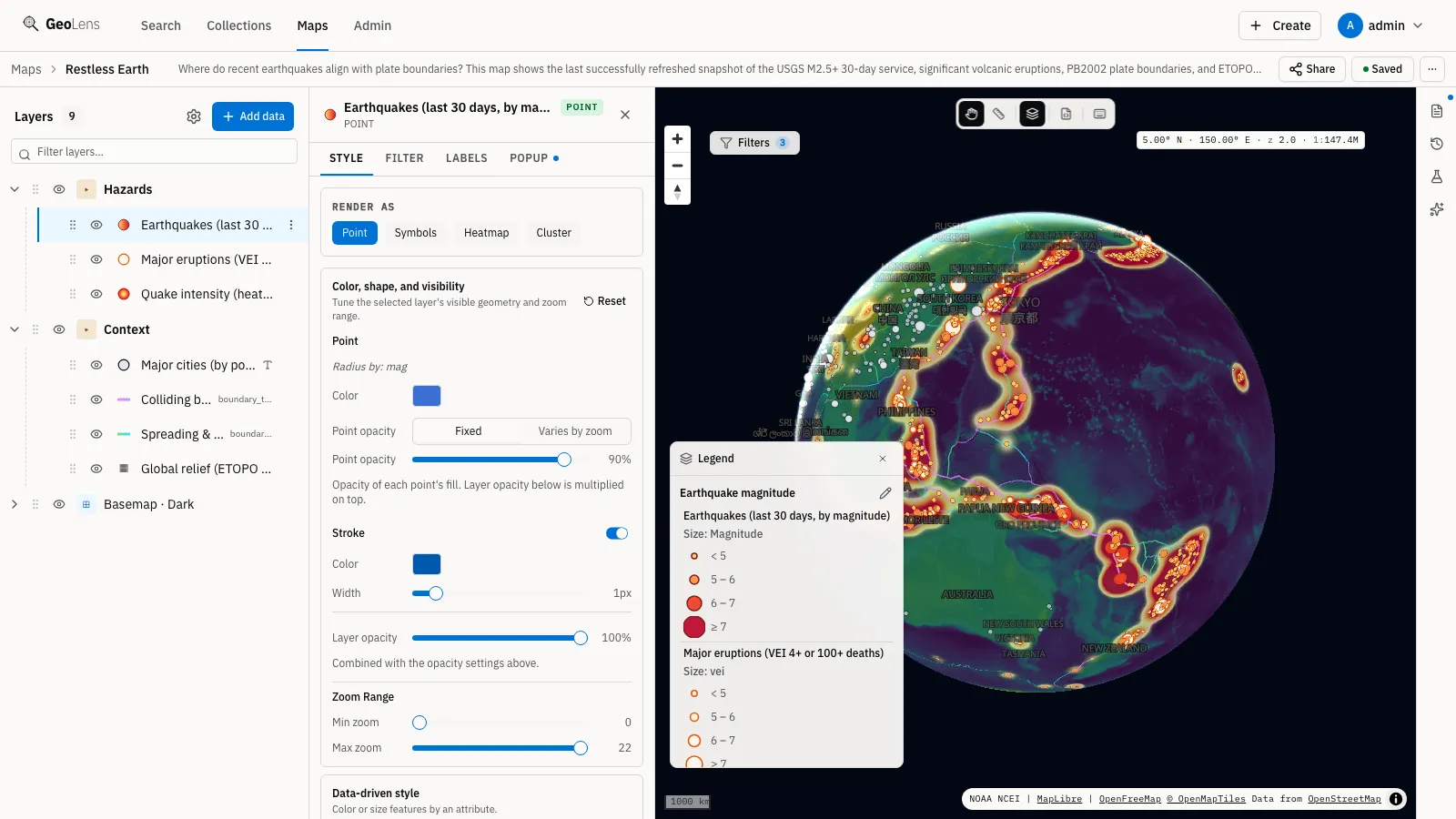
A map in GeoLens is a saved composition: a stack of layers, each with its own data source, style rules, and filter expression, plus a viewport (center, zoom, and basemap) that determines what you see when the map first loads. Maps are first-class catalog citizens: they’re searchable, taggable, and shareable, and they re-render against live data so the underlying layers stay current.
This page walks through how to build a map: starting fresh, adding layers, styling them, filtering, optional AI-assisted composition, and sharing. Transforming layer geometry (buffer, centroid, clip, dissolve, spatial join, measure, select by location, intersect) has its own page, Analysis.
Creating a map
Section titled “Creating a map”There are three ways to create a map:
- Start blank: from Maps, click Create Map and name it on the Manual tab. You’ll land on an empty canvas with the default basemap.
- Describe it: the same dialog’s AI Generate tab takes a plain-language prompt (“a map of major roads and country boundaries”) and assembles a map from matching catalog datasets. It searches only datasets you’re allowed to read, picks one of the configured basemaps, styles each layer, and frames the viewport on the layers’ combined extent; a step label ticks over while it works. The finished map is saved server-side and opens in the builder, with a toast naming the datasets it used. The tab appears only when an admin has enabled AI.
- Start from a dataset: from any dataset detail page, click Add to map. The dropdown lists your recent maps plus + New map; either way that dataset is added as a layer and the Map Builder opens.
The canvas has four main regions:
- Layer panel (left): the list of layers, with reorder handles, per-layer visibility toggles, and per-layer settings (style, filter, source).
- Map canvas (center): the actual map view; zoom and pan with mouse, pinch-zoom on touch.
- Inspector (right): context-sensitive panel that opens when you select a layer or click a feature. By default it’s collapsed.
- Rail (right edge): four map-level panels — Notes, History, Analysis, and Ask AI.
Notes is a free-text pad stored on the map: the sources you rejected, a caveat a viewer should know, a reminder for the next editing session. It saves with the map, and the rail button carries a dot whenever the map has notes. History lists that map’s recent edits, newest first, up to 50 — each with a relative timestamp, a one-line summary, who made the change, and the layer it touched. It is a record, not a time machine: there’s no revert.
Style, filter, label, ordering, viewport, and terrain edits are held locally until you save them; adding a layer or deleting one from its kebab menu is written to the server right away. The title bar shows the current state — Saved, Unsaved changes, Saving…, or Save failed — and the Save button (or Cmd/Ctrl+S) writes the layer stack, styles, and viewport back to the map. Leaving the builder with unsaved changes prompts you to confirm first.
The ⋯ menu in the title bar holds Download PNG (see below), Map info (author, created and updated dates, visibility, layer count, and the map it was forked from), Duplicate map (saves a copy and opens it; layers whose datasets you can’t access are left out, and a warning says how many) and View as viewer, which opens the saved map in a new tab the way a read-only viewer sees it.
Layers
Section titled “Layers”A layer is one dataset rendered on the map with a specific style and optional filter. Most maps have between 1 and 10 layers. A map holds at most 200, but dense maps can slow rendering well before that limit.
Layer types
Section titled “Layer types”Every layer comes from a catalog dataset, rendered in one of these ways:
- Vector: points, lines, or polygons rendered client-side from MVT tiles. The default for vector datasets in your catalog.
- Raster: image tiles served from titiler with on-the-fly band selection, colormaps, and rescaling. The default for raster datasets.
- VRT mosaic: a virtual raster that stitches several raster datasets into one continuous layer.
- GeoJSON: an ad-hoc layer fed from inline GeoJSON, handy for small overlays.
External services (WFS, ArcGIS Feature Server, OGC API Features, STAC) don’t render directly in the Map Builder. Register them as catalog datasets first through Importing Data; once a service is in the catalog, it becomes a vector or raster layer like any other. There is no WMS support and no direct file-upload into the Map Builder: files enter through the catalog Import flow.
Adding and reordering layers
Section titled “Adding and reordering layers”Click Add data at the top of the layer stack (or on the sidebar rail) to open the dataset picker. It searches your catalog by keyword and narrows by type, source organization, and keyword tags — a smaller filter set than Search & Discovery, which also offers geometry type and bbox. Each result row has a + (Add to map) button that adds that dataset as a new layer; add them one at a time. A dataset already on the map shows an Added badge instead. You can also drag a result row onto the layer stack.
Drag the handle on a layer’s row in the layer panel to reorder. Layers render top-down: the topmost layer in the panel renders on top of the canvas. A common pattern is to put base data (population, terrain) at the bottom and overlays (boundaries, points of interest) at the top.
Toggling visibility and removing
Section titled “Toggling visibility and removing”Each layer has an eye icon to toggle visibility without removing it (useful while comparing alternatives) and a kebab menu holding Rename layer, Duplicate, Add to group…, Zoom to layer, Analyze this layer, Copy style / Paste style, Delete layer, and a read-only Source panel with a link to the dataset’s detail page.
Groups, multi-select, and the basemap row
Section titled “Groups, multi-select, and the basemap row”Layers can be gathered into folder groups. Choose New group… from a layer’s kebab menu, or Add to group… to put it in an existing one. A group row collapses and expands, and its menu offers Rename group, Ungroup and Delete group (which deletes the layers inside it, after a confirmation). Move out of group takes one layer back out; if that empties the group, the group is removed.
Click a layer’s row with Cmd/Ctrl held to select several, or Shift-click for a range. A bulk bar appears with Visibility, Opacity, Group, Ungroup, Delete and, under more actions, Apply style to selection (select at least two layers). Group works only on loose layers and Ungroup only on group rows; groups are deleted from their own row menu.
The basemap sits in the stack as its own Basemap row. Expand it to pick a preset, Swap basemap, Add custom basemap…, set a Master opacity, or choose No basemap. Its sublayers (labels, roads, boundaries, relief, buildings) are listed beneath, and clicking one lets you style it on its own. Reset appearance puts the basemap back to its defaults.
Press ? in the builder for the keyboard shortcut sheet. It covers saving
(Cmd/Ctrl+S), the Pan (V), Measure (M) and Legend (L) tools, reordering a
focused layer with Space or Enter and the arrow keys, multi-select, and Esc to
close a panel, clear the selection or leave reorder mode.
Styling
Section titled “Styling”Each layer has its own style. Open a layer’s row in the panel and click the Style tab in the inspector to edit.
Vector styling
Section titled “Vector styling”A layer’s Render as switch offers the modes its geometry supports:
- Point geometry: Point (circle), Symbols (icon), Heatmap, or Cluster (offered once the dataset’s feature count is known). Configure radius, color, outline, and per-attribute styling.
- Line geometry: Line or Arrow (direction arrows along the line). Set color, width, dash pattern, and line-join behavior.
- Polygon geometry: Fill, Stroke, Fill + Stroke, or 3D extrusion (heights driven by a numeric column). Set color, opacity, outline color, and outline width.
For any of these, you can set a single static value (e.g., “all points red, radius 4 pixels”) or drive the value from an attribute. The Data-Driven Style control offers two modes:
- Categorical: a different color per unique value of a text column (e.g.,
one color per
land_usecategory). A column with many values shows a warning, and past 20 categories only the first are listed. - Graduated: classes built from a numeric column (e.g., a choropleth on
population_density). Pick a Method: Equal Interval, Quantile, Natural Breaks (Jenks, computed from a sample of the column), Standard Deviation, or Manual, where you type ascending break values. Set the number of Classes. On point and line layers the Target can be Color, Radius (points) or Width (lines), with a Min size and Max size for the last two. The result is stepped classes; there is no continuous color interpolation.
Color ramps include sequential options (Viridis, Inferno, Plasma, Blues, Greens, Purples and others), diverging ramps (RdBu, BrBG, RdYlBu, PiYG, PRGn, Spectral), and qualitative palettes (Set 1 to 3, Paired, Dark 2, Accent, Pastel 1 and 2). Reverse flips a ramp, Custom colors lets you set each class by hand, and CVD-safe only limits the list to ramps that stay readable with color-vision deficiency.
Point layers can also render as a heatmap (density surface) or as clusters (nearby points collapse into a count bubble that expands on zoom). Clustered layers can be colored by cluster size: toggle Color by cluster size in the cluster style controls and tune the step ramp to distinguish small from large clusters at a glance. The number on each bubble has its own Show counts toggle — turn it off to let bubble size and color carry the magnitude alone; the exact count remains in the cluster popup.
Feature text is not a render mode: labels live on the layer editor’s own
Labels tab, next to the Popup tab that chooses what a click shows.
On the Popup tab, turn the popup on for the layer, write a Title
template with {column_name} placeholders (for example {city}, {state}),
and either show all fields or pick a custom set under Visible fields. URLs
and images in field values render as links and previews. Popup settings apply
only to clicks on that layer.
Raster styling
Section titled “Raster styling”Raster layers expose:
- Band handling: GeoLens picks bands for you. A raster with three or more bands renders as RGB from its first three, a two-band raster renders its first band, and a single-band raster renders through a colormap. There is no per-band picker in the builder.
- Stretch: how the input range maps to display values — Min/Max, Percentile (clip to a low/high percentile you set), or Std Deviation (mean ± 1, 2, or 3σ). Percentile and standard deviation read the raster’s band statistics rather than a range you type.
- Colormap (single-band only): Grayscale, Viridis, Inferno, Plasma, Magma, Yellow-Red, Blue-Green, or Terrain. That’s a shorter list than the vector color ramps above — the diverging ColorBrewer ramps are not available for rasters.
- Resampling: Linear or Nearest. Nearest preserves categorical-raster pixel boundaries; linear smooths continuous rasters.
DEM styling: hillshade, elevation tint, and 3D terrain
Section titled “DEM styling: hillshade, elevation tint, and 3D terrain”A single-band elevation raster (DEM) gets two additional, independent controls in its layer editor (the row itself shows a “Not shown — enable Hillshade or 3D terrain” badge while both are off):
- Hillshade paints shaded relief from the DEM, with an optional hypsometric elevation tint layered into the shading. The tint is clipped to the DEM’s own footprint, so it never bleeds outside the data extent. The tint spans a fixed 0 to 4000 m and assumes meters, so a DEM in other units or ranges can look flat, and it needs hillshade shading turned on. Hillshade exaggeration runs from 0 to 1.
- 3D terrain binds the DEM as the map’s elevation source so the whole scene tilts into 3D. Terrain applies at the map level — exactly one DEM drives it at a time, and duplicating a DEM layer cannot stack extra terrain.
The two are composable: the same DEM can paint hillshade and drive 3D terrain simultaneously, or do either alone. Hiding the DEM layer (the eye icon) hides everything it contributes — hillshade, tint, and terrain — in both the builder and the shared-map viewer.
How terrain reads a DEM
Section titled “How terrain reads a DEM”GeoLens serves the DEM as Terrain-RGB tiles, the RGB elevation encoding that MapLibre decodes back into an elevation per pixel. Terrain assumes the elevation values are in meters, so a DEM in other units, such as US survey feet, exaggerates the relief. Terrain exaggeration is adjustable from 0 to 3.
Many DEMs mark pixels outside the captured area with a nodata value such as
-9999. A tile that only partly overlaps the DEM mixes real elevations with
that fill, and unmasked it would show as spikes or cliffs at the edge of the
DEM. GeoLens masks the DEM’s nodata so fill pixels render transparent. It uses
the nodata value recorded when the DEM was ingested, and -9999 when the DEM
declares none.
Small DEMs over a large view
Section titled “Small DEMs over a large view”A high-resolution DEM often covers a small area. Zoom out and it is a raised patch surrounded by flat ground at sea level. The builder shows a warning when the active DEM covers less than about a quarter of the current view.
A map has exactly one terrain source, so a coarse global DEM and a detailed DEM cannot both supply elevation. To avoid the patch, zoom in until the DEM fills the view, or choose a DEM that covers the whole area as the terrain source. A second DEM can still add detail as a hillshade or elevation tint layer, but it does not change the 3D surface.
Filters
Section titled “Filters”A layer filter is a MapLibre filter expression that the renderer applies in the browser to the features the tiles already delivered. Filters reduce visual clutter; they do not change what GeoLens fetches.
Open a layer and use its Filter tab. Each condition picks a column, an
operator, and a value, and Match all (AND) or Match any (OR) combines
them. The operators on offer depend on the column type: text columns get
equals, not equals, contains, in list, not in list, is null, and exists;
numeric columns swap contains for >, <, >=, and <=.
The JSON toggle swaps the condition rows for the raw expression array, so you can write forms the structured editor doesn’t build:
["all", [">", ["get", "population"], 10000], ["==", ["get", "state"], "CA"]]Always reference a column with the ["get", "column"] form. The editor
validates the expression when you apply it and reports an invalid one instead
of saving it. There is no spatial operator — a layer filter compares attribute
values only.
A filter changes what the map draws, not what the underlying dataset holds. Analysis in the builder applies it, so buffering a layer filtered down to six points makes six buffers. See Analysis.
Map settings
Section titled “Map settings”The gear next to Add data at the top of the layer panel opens Settings, a map-level scene with four sections: Appearance (the canvas color behind the basemap, with a reset button), Terrain (which layer currently drives 3D terrain, and a shortcut to open it), Plugins, and Projection. Like style edits, these are held locally until you save.
Plugins
Section titled “Plugins”Plugins are the tools that draw on the map canvas itself. Two ship with GeoLens:
- Measure: click to drop points and read the distance along the path, or switch to Area to close the ring and read the enclosed area. Results show in metric or imperial — the unit label toggles between them — and switching mode starts a fresh measurement. Esc (or the trash button) clears the current one; a second Esc closes the tool. It’s a scratch measurement on the canvas and is never saved with the map. Analysis has its own Measure operation, which is a different thing: it computes length or area per feature from the stored geometry.
- Legend: a floating legend listing the map’s visible layers with the swatch each one renders, plus a 3D terrain entry when terrain is active. The pencil icon edits the legend’s heading and the label of any entry; both save with the map, and both are honored by the shared-map viewer and the PNG export.
Measure is off by default and Legend is on. Toggle either from the toolbar at the top of the canvas — M for measure, L for legend, V back to pan — or from the switches in Settings › Plugins, which decide whether the plugin is offered on this map at all.
Which plugins exist instance-wide is an admin decision: the enabled_plugins
setting in Settings is an allowlist of plugin IDs.
Left unset, every plugin is offered; set to a list, only those are, and the
toolbar and switches for the rest disappear rather than sitting there dead.
Projection
Section titled “Projection”Projection switches the map between Mercator and Globe. Globe draws the world as a sphere on a dark backdrop instead of a flat web-Mercator plane; GeoLens labels it experimental and warns in the panel that some layers may not render correctly on it. The choice is stored on the map, so the shared and embedded views open in whichever projection you saved.
Analysis
Section titled “Analysis”The Analysis button in the right-hand rail runs PostGIS operations on any vector layer in the map: buffer, centroid, clip against a drawn area or another polygon layer, dissolve with an optional group-by column, spatial join, measure, select by location, and intersect. Every operation except dissolve previews on the map first; Create dataset then runs the operation over every feature in the background and registers the result as a new dataset.
Analysis covers all eight operations, their limits, and the equivalent API calls.
AI chat (admin-configurable)
Section titled “AI chat (admin-configurable)”The Ask AI panel in the right-hand rail is a chat assistant for map composition. It is always present. When AI is off, not configured, or not permitted for your account, the rail button reads AI unavailable and the panel says which of those applies. The assistant helps with these tasks:
- Building layer filters from natural language (“show only populated places with more than 50,000 people in California”) — the assistant writes the MapLibre filter expression into the layer’s Filter tab.
- Suggesting styles based on attribute distributions (“style this dataset
as a choropleth on
gdp_per_capita”). - Answering questions about layer data (“what’s the highest population value in this layer?”).
- Recommending layer order or style refinements based on the visible map.
- Previewing a buffer, a centroid, or a clip against another layer (“buffer the schools by 500 meters”, “clip roads to the city boundary”). The preview is temporary; save it from the badge that appears with it. See Analysis.
The AI chat is scoped to the current map: it can search the catalog and add or remove layers (these two are staged: a tray lists the pending changes and nothing happens until you Accept them, or Reject them, one at a time or all at once), set filters, styles, labels, layer visibility and opacity, preview buffer, centroid, and layer-based clip results, and answer questions about layer data, but it does not ingest new data or modify dataset metadata. On a map you can view but not edit, the assistant keeps only its read-only abilities — answering data questions and drawing analysis previews — and cannot change the map. Other changes apply immediately and show an Undo button. Its context is your current map state, the active layers, and the schema/sample of attributes in those layers.
Sharing & embedding
Section titled “Sharing & embedding”Maps have three sharing modes, set from the Share button in the page header.
- Private: only you (and admins) can open this map. Useful for drafts.
- Internal: anyone signed in to this GeoLens instance can view the map. Useful for sharing across your team without making it public.
- Public: anyone with the URL can open the map, and the map is listed in Maps. It renders read-only for non-logged-in viewers: they can’t edit, but they can pan, zoom, and click features.
Sharing a map issues a share token and a public view URL of the form
https://your-instance/m/<share-token> (distinct from the editor URL).
Adding ?embed=true renders a chrome-free variant suitable for an iframe.
Only a public map can be shared: POST /api/maps/{id}/share/ answers 400 for
a private or internal one. Calling it again for a map that already has an
active link returns that link’s hint rather than a second token; revoke and
share again when you need a new raw token.
Share links can be created with an expiration of 1, 7, 30, or 90 days, or as non-expiring links. An expired link stops resolving with a clear “expired or revoked” message; issue a new share link to restore access.
Embed iframe
Section titled “Embed iframe”The Share dialog generates an embed snippet:
<iframe src="https://your-instance/m/<share-token>?embed=true" width="800" height="600" sandbox="allow-scripts allow-same-origin" style="border:none;"></iframe>A public map embeds with the share token alone. When the map has non-public
layers, the dialog mints a scoped embed token and appends it as
&et=<embed-token>; the viewer sends it as a header on the requests it makes,
and without it those layers are left out of the response.
Keep sandbox as shown, or leave the attribute off. allow-scripts on its
own gives the frame an opaque origin, so the viewer’s API calls are
cross-origin requests with no CORS header to answer them; the app boots but
the map never loads and the viewer reports it as not found.
/m/<share-token> is the only path built to be framed. The map’s own page at
/maps/<uuid> sends X-Frame-Options: SAMEORIGIN and a frame-ancestors 'self' policy like the rest of the app, so a cross-origin iframe of it stays
blank. The embed strips the GeoLens header/sidebar, shows a small GeoLens
badge over the map, and accepts legend=true|false, center=lng,lat, and
zoom=N alongside embed=true. It honors the same access controls as the
regular share URL: viewers must have permission to see all layers in the map.
The markup for an embedded demo map, with notes on each of these rules, is in
the examples repo:
embed/iframe.html
and
embed/README.md.
Permission scope
Section titled “Permission scope”The map’s visibility cascades to its layers: a public map’s layers must all be public datasets, or the layer is silently hidden for unauthenticated viewers. The Share dialog lists any layer whose dataset isn’t visible to the map’s audience (“Hidden from viewers: …”). When the map has non-public layers it mints a scoped embed token so the embed can still show them; without that token those layers are dropped for anonymous viewers. To make a layer visible outside the embed, change the dataset’s visibility from its Access tab.
Download PNG
Section titled “Download PNG”Download PNG, in the title bar’s ⋯ menu, renders the map as it sits on
screen — current viewport, projection, and terrain — and downloads it as
<map name>-export.png.
The image is composited rather than a raw canvas grab. The map’s name and description head it, the map follows, then a legend of the visible layers (using the same heading and entry labels as the Legend plugin), then a band carrying every credit the map is currently displaying, and a “Powered by GeoLens” line at the foot. Those credits are read back from what the renderer has actually drawn, basemap and dataset attributions alike, so the image and the screen can’t disagree about which are owed; a long set of them wraps onto another line instead of being dropped.
Style JSON export and import
Section titled “Style JSON export and import”The Style JSON button on the map toolbar opens a dialog with Export and Import tabs. It moves a whole composition — sources, layers, filters, labels, sprite and glyph references, and the viewport — as a single MapLibre style document (spec version 8).
Export downloads the map as it is stored on the server. Local builder
edits that haven’t been saved yet aren’t part of it, so hit Save first if
the title bar reads Unsaved changes. The filename is the map name
slugified — lowercased, with every run of characters outside a-z0-9_-
collapsed to a single hyphen — plus .style.json, so a map called “The
Matterhorn in 3D” arrives as the-matterhorn-in-3d.style.json. The same
document is available directly:
curl -s https://your-instance/api/maps/<map-id>/style.jsonThat route is read-gated exactly like the map itself, so a public map exports
without signing in, and layers whose datasets you can’t see are dropped from
the document rather than failing the request. The GeoLens-specific detail that
makes a round trip possible rides in metadata.geolens on the document, on
each source, and on each layer. Vector tile and sprite URLs come out as paths relative to the API root,
with no host and no /api prefix, so a client outside the app needs your API
base URL (your origin plus /api) put in front of them, and the tile URLs carry a short-lived signature, so treat the file as a snapshot to inspect or re-import,
not as a style URL you can pin somewhere and load indefinitely.
Import takes a style document pasted into the dialog. It always creates a
new map — the map you’re in is never modified — and the result panel offers
Open new map along with a count of matched sources, imported layers, and
skipped layers with a warning for each. Importing needs edit permission
(POST /api/maps/import); anonymous callers get 401, and anything that isn’t a
version-8 style with sources and layers gets 400.
- Layer ordering matters for performance. Heavy raster layers at the top of the stack force the renderer to do more work even if vector layers above are fully transparent. Put background rasters at the bottom.
- Duplicate before experimenting. Use the Duplicate option on a layer to preserve the original style while you try something new.
See also
Section titled “See also”- Analysis: buffer, centroid, clip, dissolve, spatial join, measure, select by location, and intersect the layers in a map
- Dataset detail: start a map from any dataset’s “Add to map” action
- Collections: group datasets into named sets
- Settings reference: admin AI configuration and the keys that gate AI features